
Search Tips
Search With Keywords
1Start your Locstock search by typing a keyword into the search bar on the home page of our site. A keyword is any word you could use to describe the kind of location you're looking for (e.g. kitchen, wooden floors, etc.), or the name of a specific well-known location (e.g. Nelson Mandela Bridge). Each image and location has a unique file number. If you know the file number of the image or location you are looking for, you can enter it into the search box and be taken directly to the result/s relating to that number.
Quick links
2This is the easiest way to search. On the home page you will see a row of blocks below the main image. Each of these blocks represents a quick link to a specific search, for example, City Streets, Stadiums, Offices, Natural Areas and more. Just click on the block (it will turn pink and display the search criteria it represents) and this will automatically take you to that predetermined search result. There are eight search options altogether, which may change as user search trends change over time.
Advanced Search
3If you would like to search for something quite specific, it is better to use our Advanced Search option. Click the ‘Advanced Search’ button on the home page or select ‘Search’ from the main menu bar on any page. The ‘Advanced Search’ page consists of four separate search fields: Position, Object, Style and Feature. You can choose a tag from each field or choose just a tag from one or two of the fields whilst leaving the other fields empty. After selecting the tags you require, press the “Search” button on the bottom right, and this will give you the results available for your chosen tags. The “Advanced Search’ page also contains a Keyword Search bar that can be used on it’s own or in conjunction with the other search fields.
Refining your Search Results
4Narrow by Keyword
On the top left side of the search results page there is a search box where you can add/change keywords to change your search.

Narrow your search by City/Town or Suburb
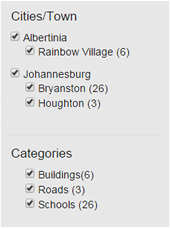
On the left side of the search results page is a column with a City/Town fields. You can uncheck the boxes next to the City/Town or the Suburbs in order to remove images in these areas from your search results. You can always check the boxes again to bring the removed images back to the results page.
Narrow your search by Category
The entire Locstock library is divided into categories. These are common themes that group location and image files and include things like Houses, Stadiums, Streets etc. You can filter your results by unchecking the categories you don’t want near the bottom left-hand side of the search results page. As in the case above, you can always check the boxes again in order to bring the removed images back to the results page.
Search by File Number
If you know the file number of the image or location you'd like to purchase, you can enter it into the Search box and be taken directly to the results page for that file.

Socialise